You’ve probably seen the dreaded “storage almost full” notification right before you wanted to snap a photo. Most people’s first instinct is to start deleting pictures. But that’s often the last thing you should do. There are plenty of ways to free up storage on Android without deleting photos. Most take just a few minutes. First, you need to understand where your space is actually going. It’s rarely just photos. Apps, cached data, downloaded files, and old chat backups quietly pile up in the background. They eat away at your storage long before your camera roll becomes the real problem.
Back Up Photos to the Cloud First
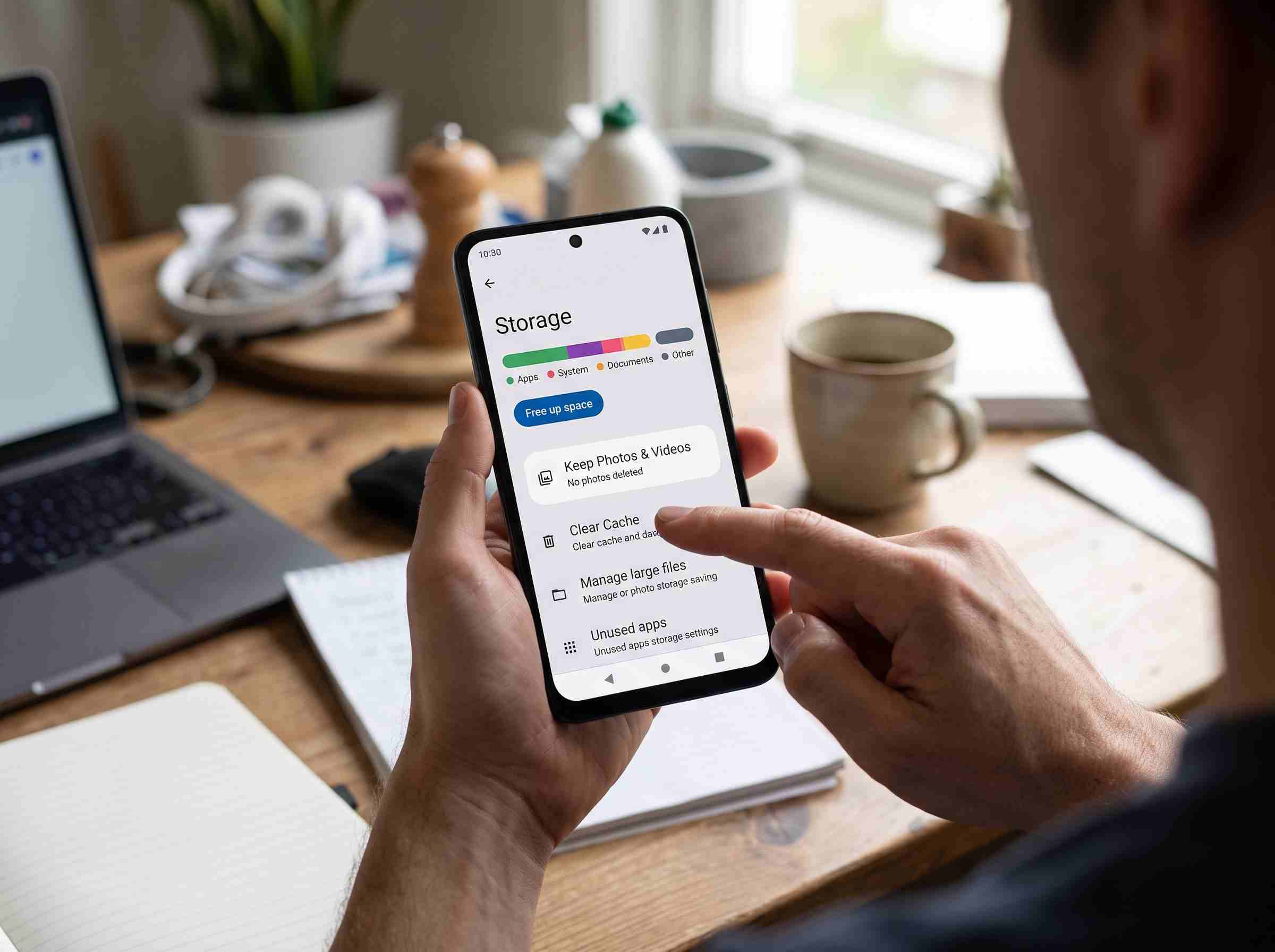
The easiest way to free up storage on Android without deleting photos is to move them off your device while keeping access to them. Google Photos offers free cloud backup, with some storage limits depending on your plan. Once you back up your photos, switch on “Free up space” inside the app. This removes the local copies from your phone’s internal storage. Your photos stay safely stored online, so you can still view, download, or share them anytime. This single step solves the problem without touching a single photo for good. Check the official Google Photos support page to learn more about how backup and sync works.
Clear Cached Data From Apps
App cache eats up a huge chunk of your storage. Apps store these temporary files to load faster. Clearing this cache is a safe way to free up storage on Android without deleting photos or any personal files. Go to Settings > Storage > Apps. Tap the apps using the most space, usually social media or browsers. Clear their cache individually, or clear it phone-wide for a quicker clean-up. Target the biggest offenders first for better results. This step alone can free up several gigabytes, especially if you haven’t done it in a while.
Offload or Delete Unused Apps
Forgotten apps often take up more space than photos ever will. Go through your app list and look for anything you haven’t opened in months. Want to free up storage on Android without deleting photos but aren’t ready to remove an app? Some Android versions let you “disable” apps instead. This keeps your data intact while reclaiming the space the app itself uses. For apps you genuinely don’t need, just uninstall them. Your photos stay completely untouched throughout the process.
Move Files to an SD Card or External Storage
Does your phone support expandable storage? Moving large files like videos, downloaded PDFs, or music to an SD card offers a simple way to free up storage on Android without deleting photos. Some phones even let you set the SD card as default storage for new photos and downloads. This prevents the problem from coming back. No card slot? A small USB-C flash drive made for Android works just as well for transferring large files off your internal storage.
Compress Large Files Instead of Removing Them
Compression gives you another underrated way to free up storage on Android without deleting photos, especially with large video files or downloaded documents. Instead of deleting these files, shrink them to keep the content while reducing its footprint. Need to compress images or PDFs before storing or sharing them? Tools like the free image compressor on TheBDPage let you reduce file sizes right from your browser without installing anything. This keeps both your photos and your storage intact.
Clear Downloads and Old WhatsApp Media
Your Downloads folder and messaging apps silently kill your storage. WhatsApp auto-saves every photo, video, and voice note sent to you, and these pile up fast. Open your file manager and check the Downloads and WhatsApp Media folders. Remove anything you no longer need: screenshots, forwarded memes, old voice messages, and duplicate files. This gives you one of the fastest ways to free up storage on Android without deleting photos you actually care about. Most of what sits in these folders was never meant to be kept long-term anyway.
Use Android’s Built-In Storage Manager
Most Android phones come with a built-in tool that scans your device and suggests what to remove. Find it under Settings > Storage > Manage Storage or Free Up Space. It highlights large files, duplicate downloads, and unused apps. This gives you a clear picture of what’s safe to clear. Not sure where to begin? This tool offers a great starting point to free up storage on Android without deleting photos. It does the detective work for you and keeps your personal photo library completely separate from its suggestions.
Final Thoughts
Running low on storage doesn’t mean your photos have to be the casualty. Try cloud backup, cache clearing, removing unused apps, offloading files to external storage, compressing large documents, and cleaning out downloads. These methods give you more than enough ways to free up storage on Android without deleting photos. Try a couple of these methods today. You’ll likely be surprised how much space you get back, all while keeping every photo exactly where it belongs.