
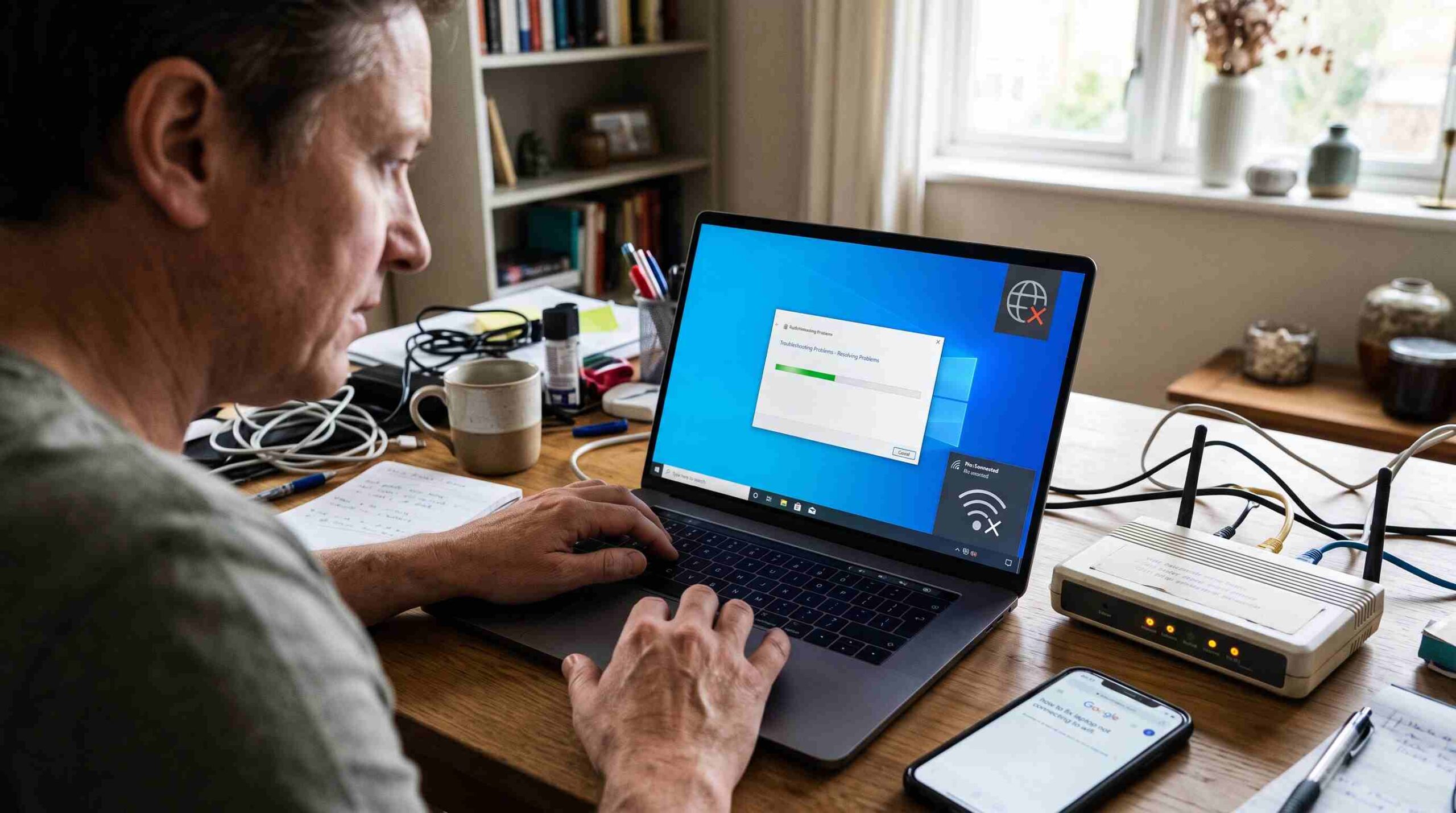
You sit down and open your laptop. The wifi icon shows that little exclamation mark or “X” again. If you’re trying to figure out how to fix a laptop that won’t connect to wifi, you’re not alone. Most of the time, the fix takes less than ten minutes. Don’t call a technician yet. Work through the steps below in order. They start with the simplest fix and move toward the more technical ones, so you won’t waste time on complicated steps until you’ve ruled out the easy stuff.
Start With the Basics Before Anything Else
The first rule when learning how to fix a laptop that won’t connect to wifi: skip the settings menus at first. Check the wifi switch on your laptop. Sometimes it’s a physical key, sometimes a function-key combo like Fn + F2. It sounds obvious, but airplane mode or an accidentally disabled adapter causes more problems than you’d expect. Next, restart your router and modem. Unplug them for about thirty seconds. This clears temporary glitches that cause wifi connection problems more often than people realize. Restart the laptop too. A simple reboot clears stuck background processes that might interfere with your adapter, and it resolves a surprising number of networking hiccups.
Check If the Problem Is Your Laptop or Your Network
Before you keep troubleshooting how to fix a laptop that won’t connect to wifi, figure out where the problem sits. Try connecting another device, like your phone, to the same wifi network. If the phone connects fine but your laptop doesn’t, the problem lives in your laptop. If nothing connects, the issue likely sits with your router or your internet provider. Microsoft’s own guide to fixing Wi-Fi connection issues in Windows can help you confirm which side the fault sits on. It walks through built-in diagnostics you may not know exist.
Forget the Network and Reconnect
Here’s a fix that works more often than you’d think: “forget” the network and reconnect from scratch. Saved network profiles sometimes get corrupted. This happens especially after a router password change or a firmware update on the router’s end. On Windows, open Settings, then Network & Internet, then Wifi, and select “Manage known networks.” Click your network name and choose “Forget.” Search for the network again once it’s gone. Enter the password carefully, then reconnect. This forces your laptop to build a fresh connection profile instead of relying on an old one that no longer matches your router’s settings.
Update or Reinstall Your Network Driver
Outdated or corrupted drivers rank high among the reasons people search for how to fix a laptop that won’t connect to wifi. Your wifi adapter relies on a driver to talk to Windows properly. If that driver is out of date, your laptop might see networks but fail to connect. Open Device Manager and expand “Network adapters.” Right-click your wireless adapter and select “Update driver.” If that doesn’t help, uninstall the driver entirely and restart your laptop. Windows usually reinstalls a clean version on its own. For a deeper look at adapter settings, including how to disable power-saving features that can quietly disconnect your wifi, check your laptop manufacturer’s support site. Instructions vary slightly between Dell, HP, Lenovo, and other brands.
Run the Built-In Network Troubleshooter
Windows includes a network troubleshooter that catches many of the same issues a tech-savvy friend would spot. It’s often the fastest way to move forward on how to fix a laptop that won’t connect to wifi without digging through menus yourself. Right-click the wifi icon in your taskbar and select “Troubleshoot problems.” The tool runs a quick diagnostic. It flags anything unusual, like a mismatched IP address, and often fixes the issue on its own. It won’t catch everything, but it gives you a useful second opinion before you move to more advanced steps.
Reset Your Network Settings
Did none of the steps above work? A full network reset might answer your question of how to fix a laptop that won’t connect to wifi. This wipes all your network adapters and reinstalls them. It also resets other networking components to their defaults. On Windows, go to Settings, then Network & Internet, then Advanced Network Settings, and choose “Network reset.” Keep in mind this removes all saved wifi passwords. You’ll need to reconnect to your networks afterward and re-enter your credentials. It’s a bit of a nuclear option, but it clears up stubborn connection issues that smaller fixes can’t touch.
Check for Interference and Router Placement
Sometimes the answer to how to fix a laptop that won’t connect to wifi has nothing to do with software. Physical interference might be the real cause. Thick walls, microwaves, baby monitors, and even other wifi networks on the same channel can weaken your signal enough to cause dropped or failed connections. Try moving closer to your router and see if the connection improves. If it does, reposition your router to a more central, elevated spot in your home. Keep it away from large appliances and metal objects that block the signal.
When It’s Time to Call Your Internet Provider
Did you work through every step above and your laptop still won’t connect? The problem might sit outside your home entirely. Outages, account issues, or faulty equipment on your provider’s end can all mimic a laptop problem. Most providers let you check service status from their website or app before you pick up the phone. This can save you a frustrating call if the issue turns out to sit on their side rather than something you did wrong.
Final Thoughts
Learning how to fix a laptop that won’t connect to wifi doesn’t require technical expertise. It just takes a bit of patience and a willingness to work through the steps in order. Start simple, with restarts and basic checks, before you move into driver updates and network resets. Most connection problems get solved somewhere in the first few steps. Don’t feel like you need to try everything at once. And if you run into this again, you’ll already know exactly where to start. For more troubleshooting guides like this, check out our other tech help articles on thebdpage.com.