
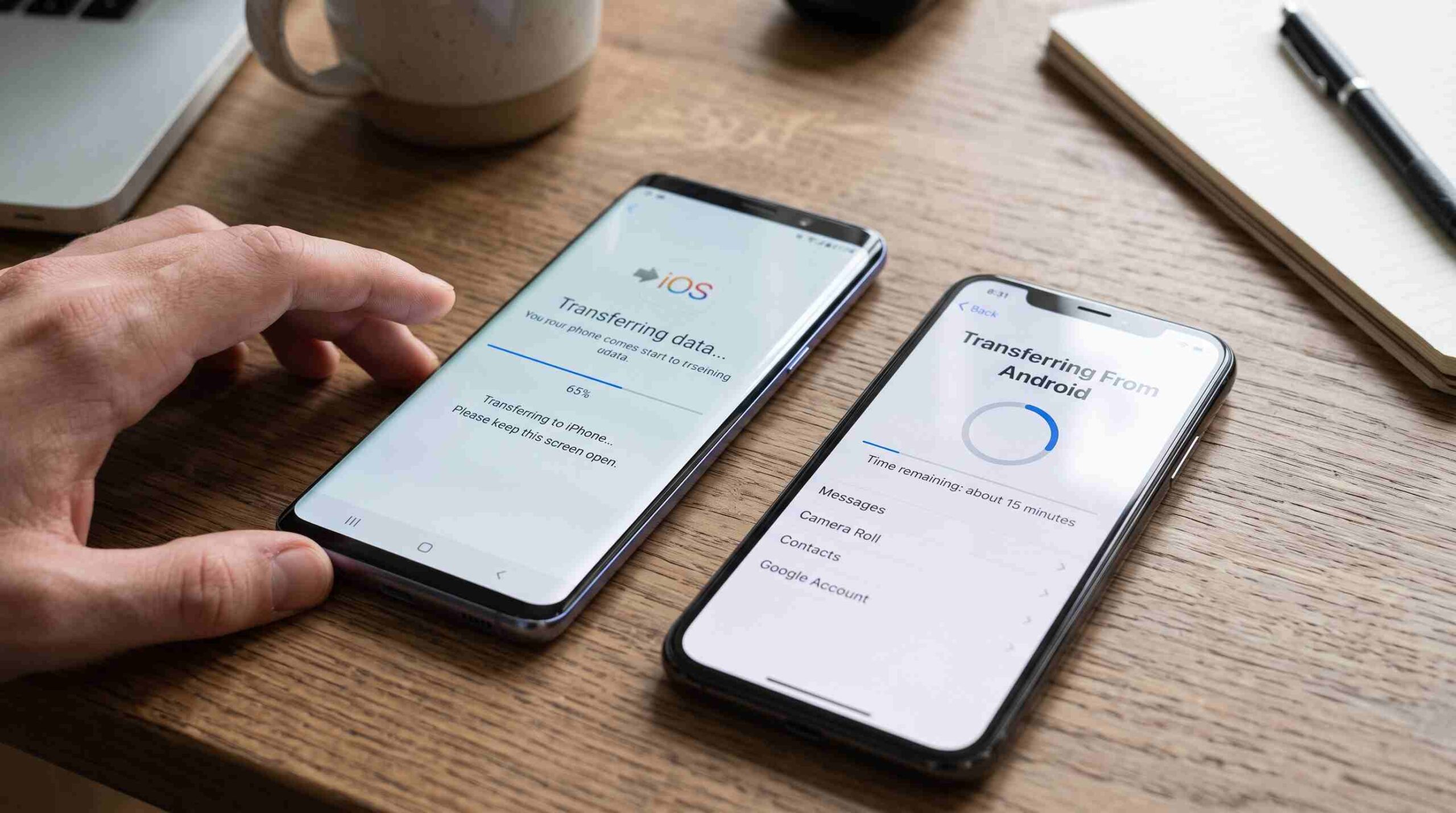
If you just bought a new iPhone and you’re wondering how to transfer data from Android to iPhone without a computer, you’re not alone. Every year, millions of people switch from Android to iOS, and the biggest fear is always the same: losing years of photos, contacts, and app data in the process. The good news is that you don’t need a laptop, a USB cable, or any technical skill to move everything over. Apple actually built a tool specifically for this, and there are a few other reliable methods too. In this guide, we’ll walk through exactly how to transfer data from Android to iPhone without a computer, using nothing but your two phones and a stable Wi-Fi connection.
Why People Search for a Computer-Free Transfer Method
Not everyone has a computer sitting around, and honestly, most people don’t want to deal with cables, drivers, or software installations just to move their contacts. That’s exactly why so many people look for a way to transfer data from Android to iPhone without a computer — it’s faster, simpler, and works entirely from your pocket. Whether you’re at home, at a phone store, or traveling, you can complete the entire process using just your Android phone and your new iPhone side by side.
Using Apple’s Official Move to iOS App
The easiest and most recommended way to transfer data from Android to iPhone without a computer is Apple’s own app, called Move to iOS, which helps you migrate content from an Android device to a new iPhone, iPad, or iPod touch. This app is free and available on the Google Play Store. Here’s how it works in practice:
First, set up your new iPhone until you reach the “Apps & Data” screen during initial setup, and choose “Move Data from Android.” On your Android phone, open the Move to iOS app and tap “Continue.” Both devices will generate a code — enter the code shown on your Android phone into your iPhone to create a private Wi-Fi connection between them. This is the core of how you transfer data from Android to iPhone without a computer: the two phones talk directly to each other, so nothing is uploaded to the internet and nothing passes through a PC.
Once connected, you’ll see a list of content you can bring over, including contacts, message history, camera photos and videos, web bookmarks, mail accounts, and calendars. Apple notes that if you have an Android device, you can transfer your data to your new iPhone, iPad, or iPod touch using the Move to iOS app, and the transfer happens automatically once you select what to move and tap “Continue” on the Android side. Depending on how much data you have, this can take anywhere from a few minutes to over an hour, so keep both phones connected to power and avoid using them until the progress bar finishes.
What Actually Gets Transferred
When people ask how to transfer data from Android to iPhone without a computer, they usually want to know exactly what moves over and what doesn’t. Move to iOS handles contacts, SMS and MMS message history, photos and videos from your camera roll, bookmarks, mail accounts, and calendar entries. It will also attempt to find and install the free equivalents of your Android apps from the App Store where available, though paid apps and app data (like game progress) generally won’t transfer directly.
For media specifically, cloud backups are often more reliable. If you already back up your photos with Google Photos, you can simply install the Google Photos app on your new iPhone and sign in — your entire library will sync down automatically. This is a useful companion method alongside Move to iOS, especially for people with large photo libraries built up over several years.
Transferring WhatsApp Chats Without a Computer
One thing Move to iOS does particularly well is WhatsApp migration, which used to require a computer entirely. Now, if you open WhatsApp on your Android phone, go to Settings, then Chats, then Chat Backup, you can transfer your chat history directly through the Move to iOS process when prompted. This has made it genuinely painless to transfer data from Android to iPhone without a computer even when WhatsApp is your primary messaging app, as long as both phones stay close together and connected to the same transfer session throughout.
Using Samsung Smart Switch as an Alternative
If you’re coming from a Samsung device, Smart Switch offers another route. Samsung Smart Switch lets you transfer content like contacts, photos, videos, and more, wirelessly or with a cable, from your old phone to your new device. While Smart Switch is most associated with Samsung-to-Samsung transfers, it can also push a meaningful amount of content to iPhone when paired with Apple’s receiving tools, making it a useful backup option if Move to iOS runs into an issue with your specific device model.
Tips to Make the Transfer Go Smoothly
A few small habits make a big difference when you transfer data from Android to iPhone without a computer. Keep both phones at least 80% charged, or plugged in, since the process can take a while with large libraries. Stay on a strong Wi-Fi network rather than mobile data, since the transfer relies on a direct wireless connection between the two devices. Don’t use either phone — don’t take calls, open apps, or lock the screen — while the transfer is in progress, since this can interrupt the connection. Finally, double-check your contacts and photos once the transfer finishes before you erase or sell your old Android phone, just to be safe.
If you ever need to back up or convert files during the process — like compressing large video files or converting images before moving them — a free tool such as TheBDPage’s file converter can help you manage media sizes without installing extra software.
Final Thoughts
Switching from Android to iPhone used to mean hours in front of a computer, but that’s simply not the case anymore. With Apple’s Move to iOS app, Google Photos for your media library, and optional tools like Samsung Smart Switch, you can transfer data from Android to iPhone without a computer in under an hour for most users. The key is patience: keep both devices close, stay on Wi-Fi, and let the transfer finish uninterrupted. Once it’s done, your new iPhone will feel like a natural continuation of your old phone, not a fresh start.